Beat the Traps
A guide for teachers
How to set up your class, set homework, and see what your students have done. Tap a section to open it.
Download this guide as a PDFThe screens shown use an invented school and invented students.
1Signing in
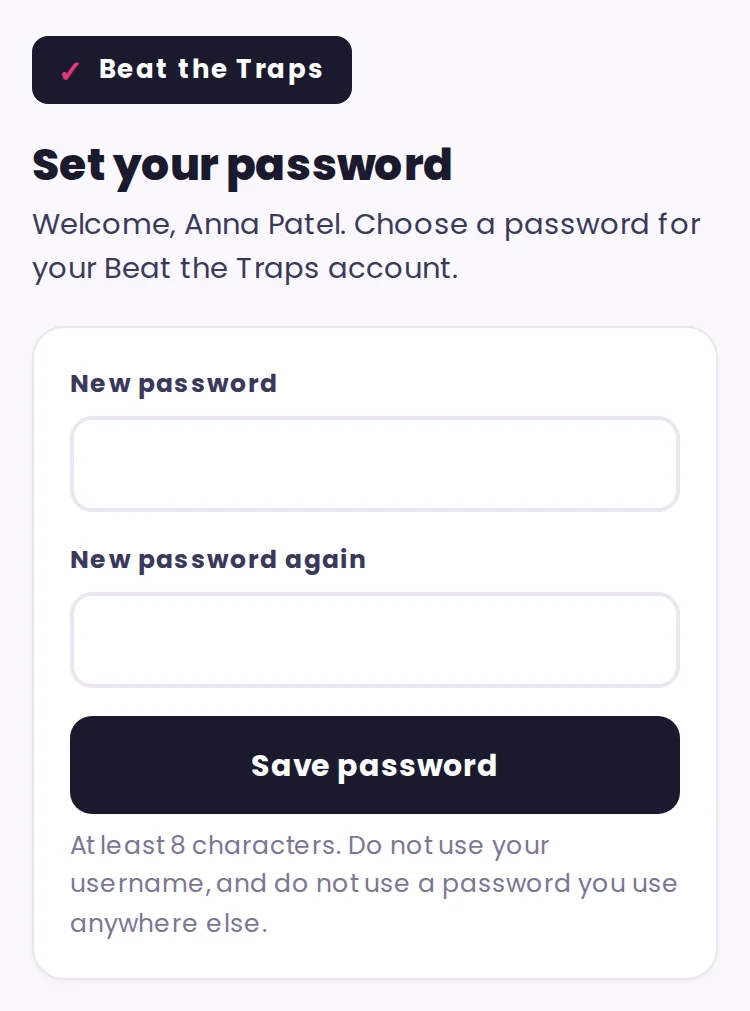
Your invitation arrives by email. The link lets you choose a password of at least 8 characters. It works once and lasts 14 days. If it has run out, ask a colleague to send you a new one from Manage → Teachers, or email hello@sakatismaths.co.uk.
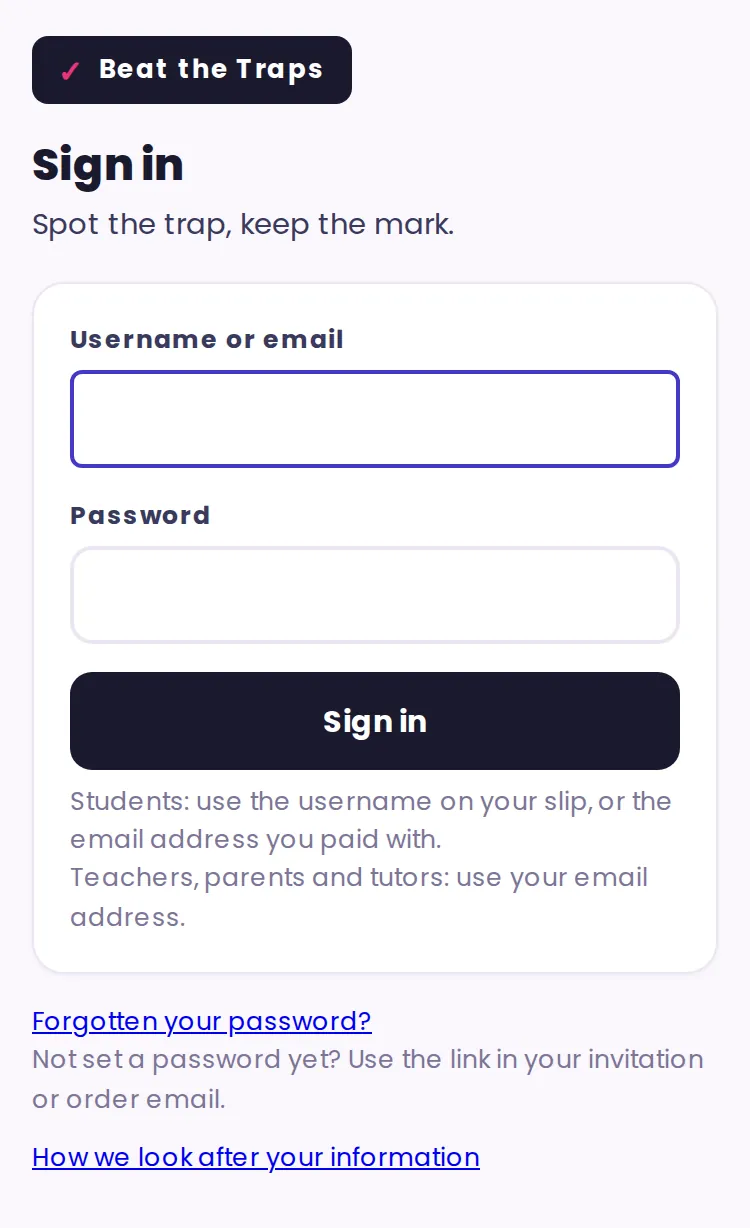
After that, sign in at app.sakatismaths.co.uk with your email address. You stay signed in for a day. It works on a phone, a tablet or a laptop.
2Finding your way round
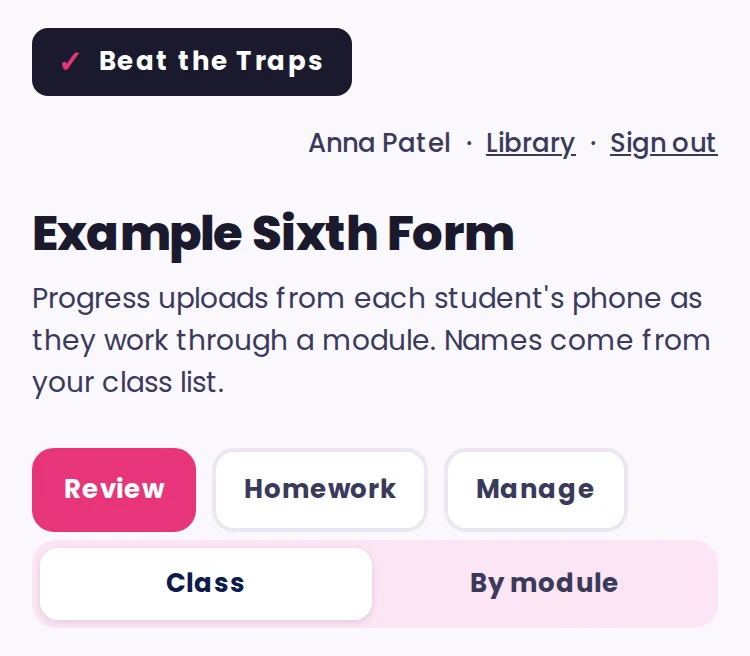
Every teacher page has three tabs:
- Review: what your students have done. You land here when you sign in.
- Homework: set homework and see who has finished it.
- Manage: your students, and the other teachers at your school.
At the top, Library opens the students' library in a new tab, so you can see exactly what they see.
3Before students start
Tell your students that the school has arranged Beat the Traps and that you can see their progress, including the answers they choose. Tell them not to share their sign-in. The licence asks the school to do both.
4Adding students
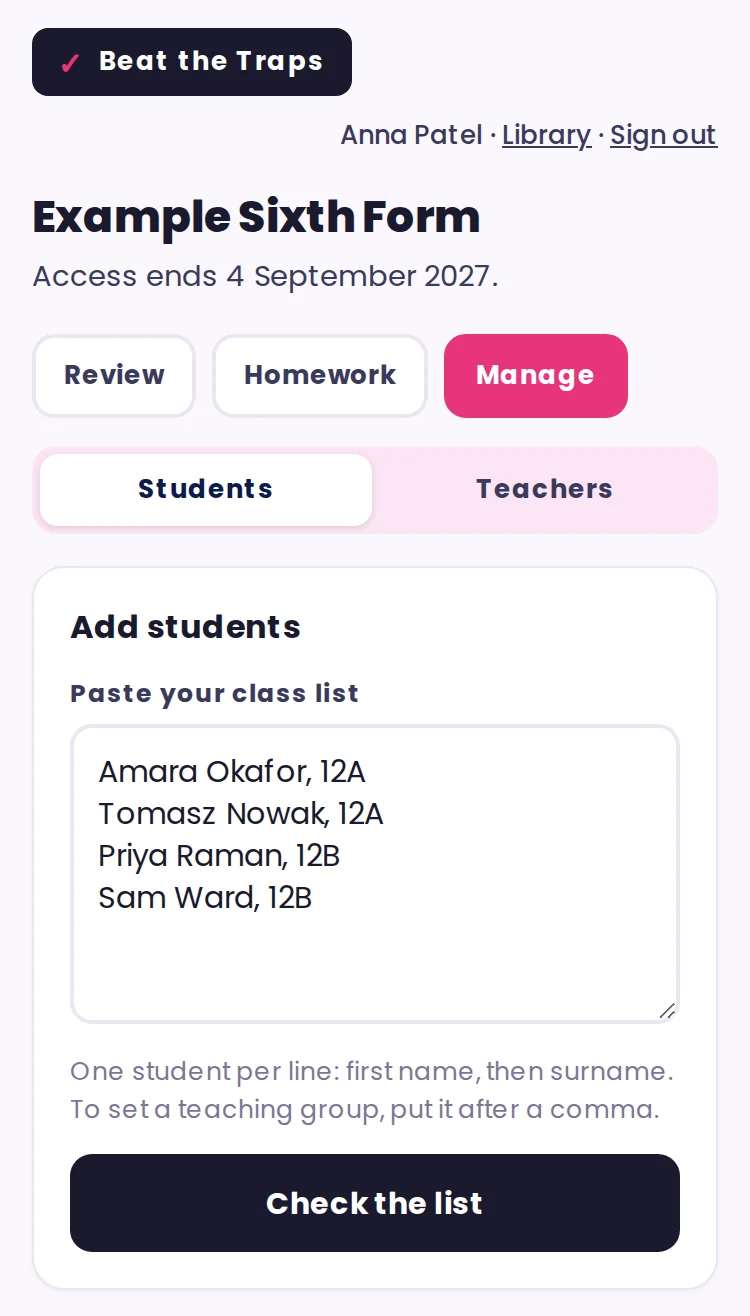
- Manage → Students → Add students.
- Paste your class list, one student per line: first name, then surname. To put a student in a group, add a comma and the group, for example "Amara Okafor, 12A".
- Tap Check the list and correct anything that needs it.
- Tap Create accounts.
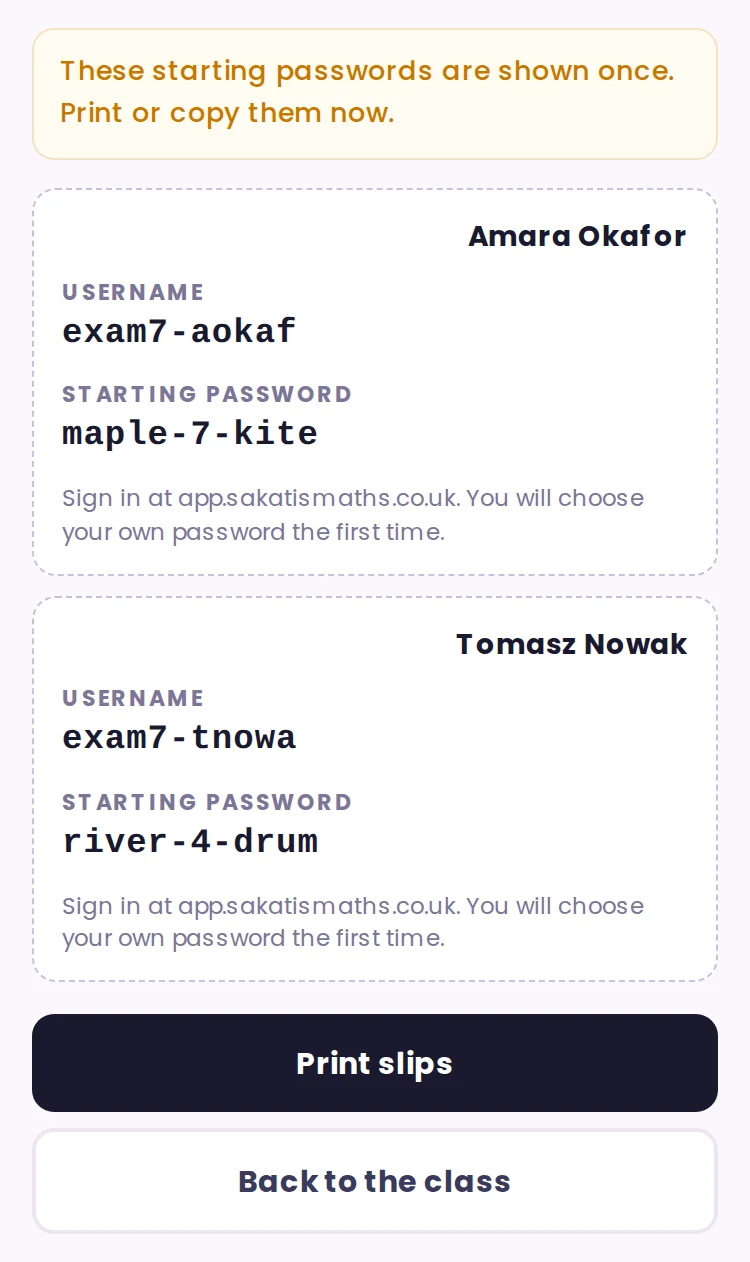
Each student gets a username and a starting password, shown once on printable slips. Print or copy them before you leave the page. At their first sign-in, students choose their own password. Students never need an email address.
5Looking after students
Each student has three buttons:
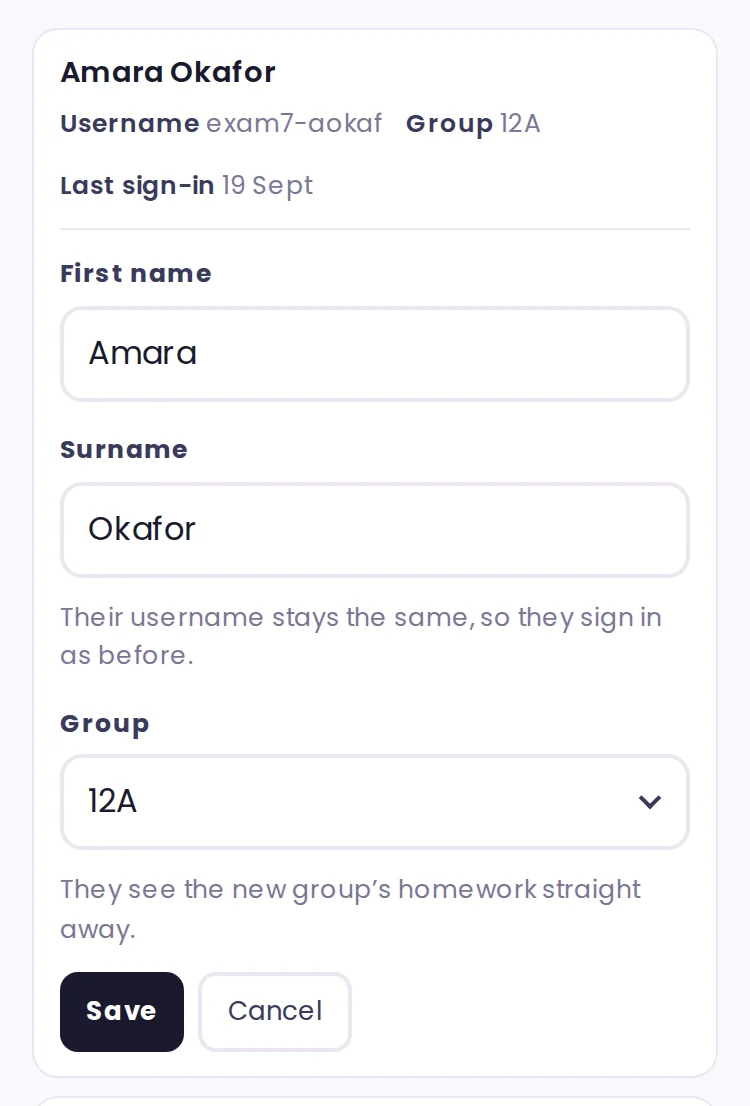
- Edit: correct a name or change their group. Their username stays the same. A student moved to a new group sees that group's homework straight away.
- Reset password: gives you a new starting-password slip. Their old password stops working.
- Archive: for a student who leaves. They can't sign in and their seat is freed, but their work is kept. Restore brings them back.
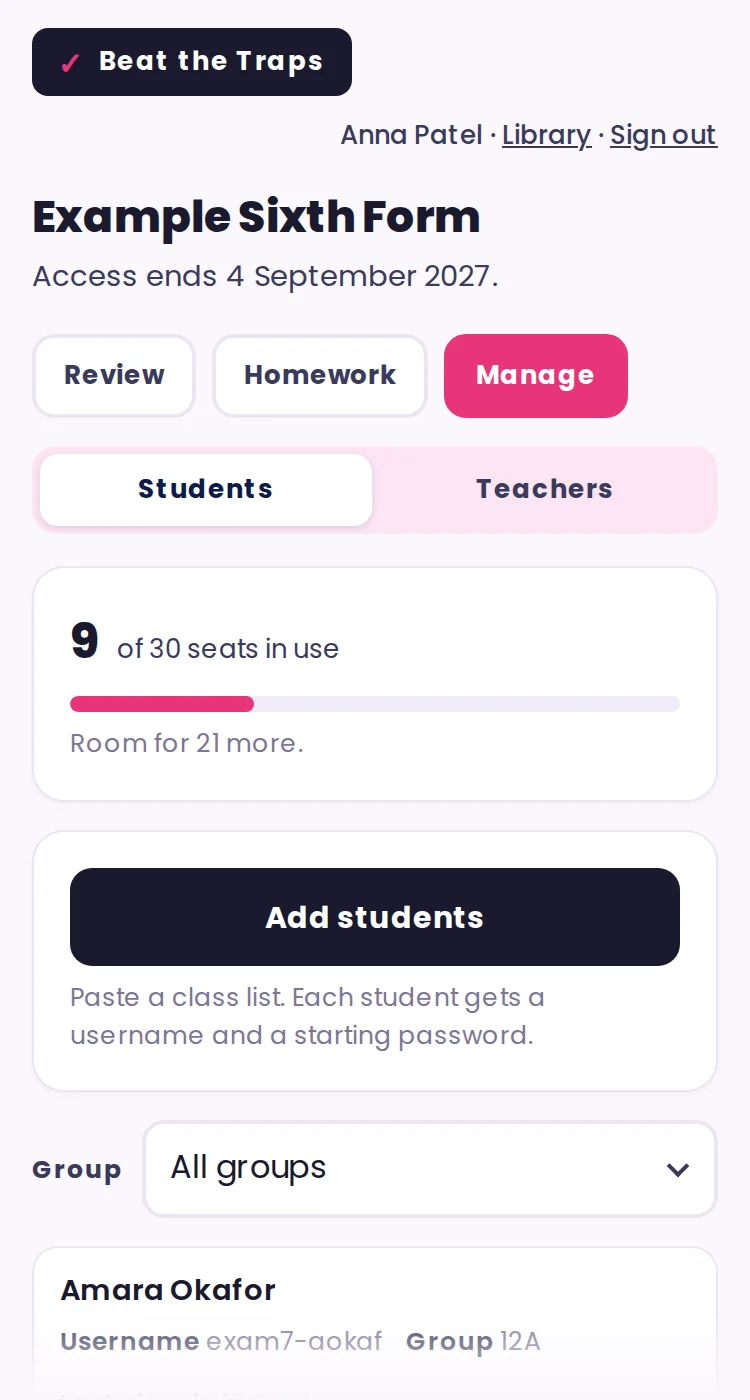
The card at the top shows how many seats are in use. There's no charge for a small overrun. If you're near your limit, archive leavers or email us to move up a band. With two or more groups, a Group filter shows one group at a time.
6Adding other teachers
Any teacher can add a colleague, with no limit and no charge.
- Manage → Teachers → Add a teacher.
- Type their name and school email address.
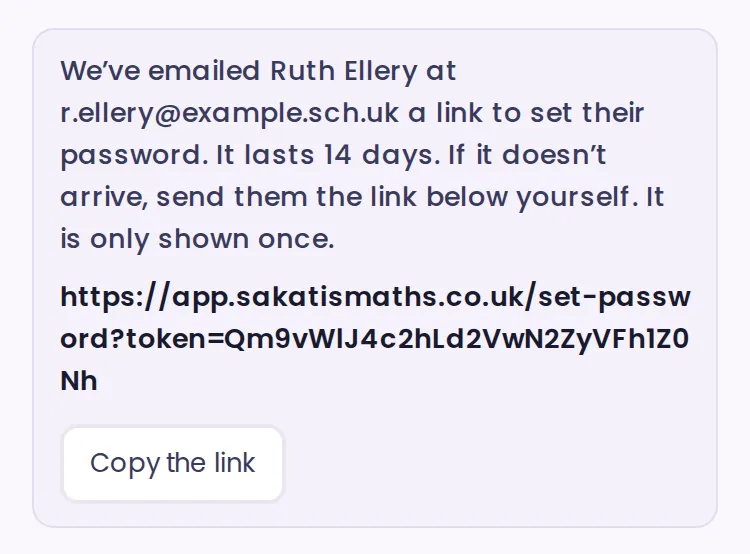
- We email them a link to set their password. It lasts 14 days. The link also appears on your screen once, in case the email doesn't arrive.
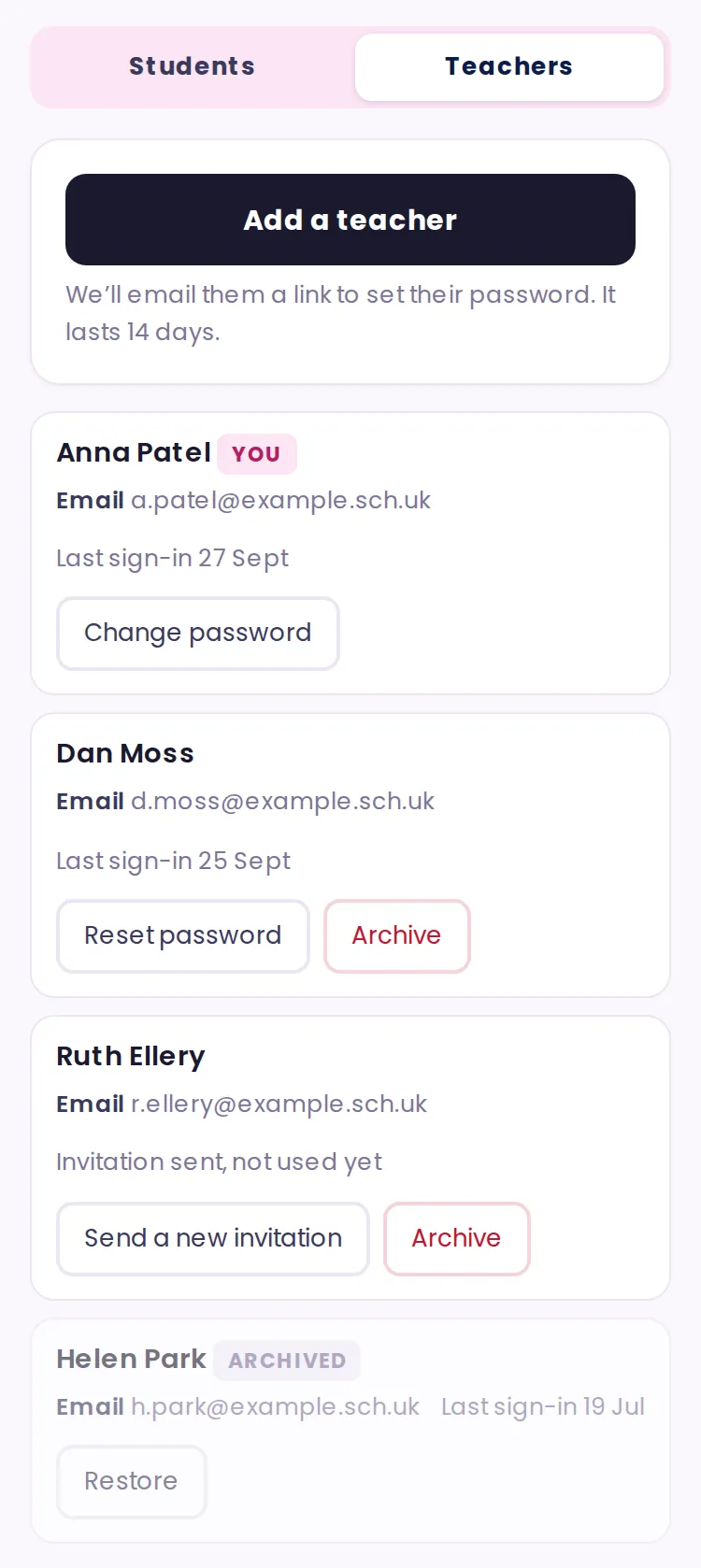
On the Teachers list:
- Send a new invitation: for a link that was never used or has expired.
- Reset password: we email them a link to choose a new password, and their old one stops working.
- Archive: for a colleague who leaves. Their students, homework and progress are not affected.
- Change password: on your own card.
You can't archive yourself, and your school always keeps one teacher who can sign in. Please add only your own school's staff, and archive anyone who leaves.
7Setting homework
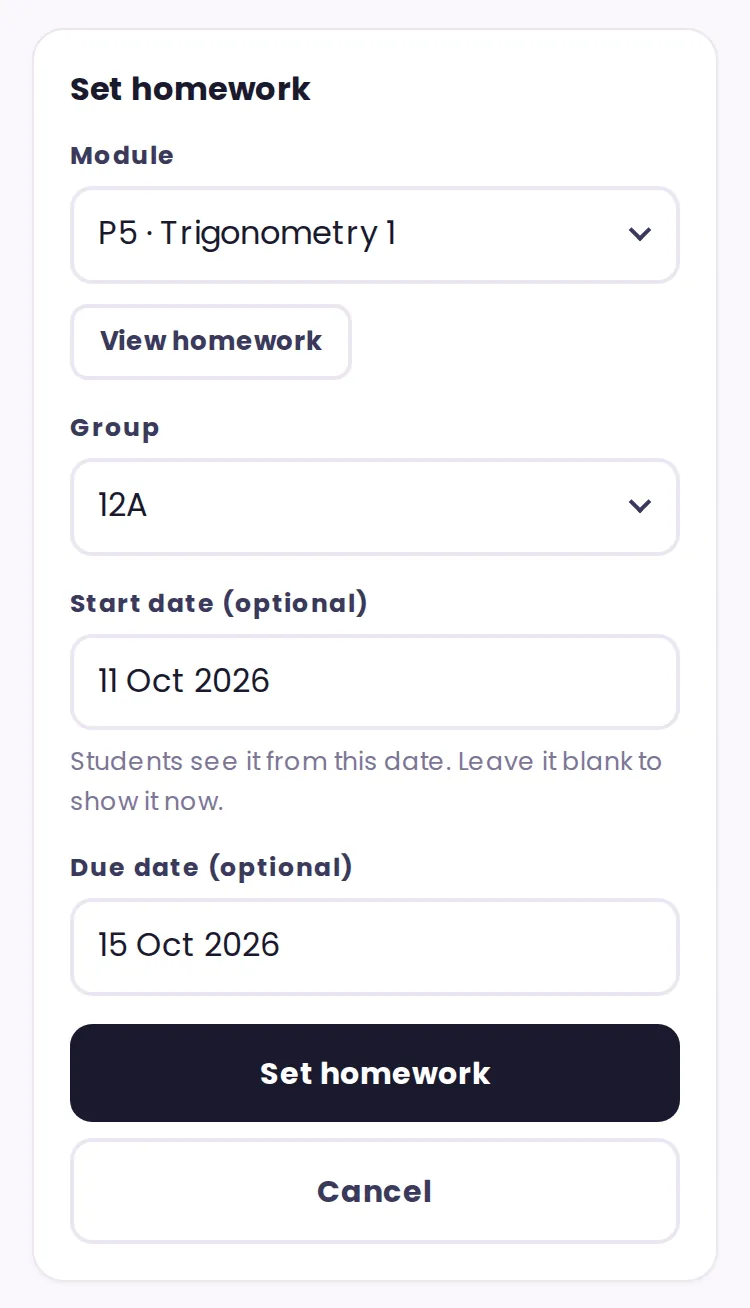
- Homework → Set homework.
- Choose a module and a group, or Students with no group. View homework opens the module in a new tab, so you can look at it first.
- Add dates if you want them. Start date: students see the homework from this date, so you can set a whole term at once. Due date: shown to students, and used to mark work late or overdue.
A homework is finished when the student has done the practice in every trap, whatever they scored. How many beat every trap, dropping at most one question in each, is counted beside it. Work done before you set it counts, so a student who has already done the module is ticked at once. Each module can be set once per group.
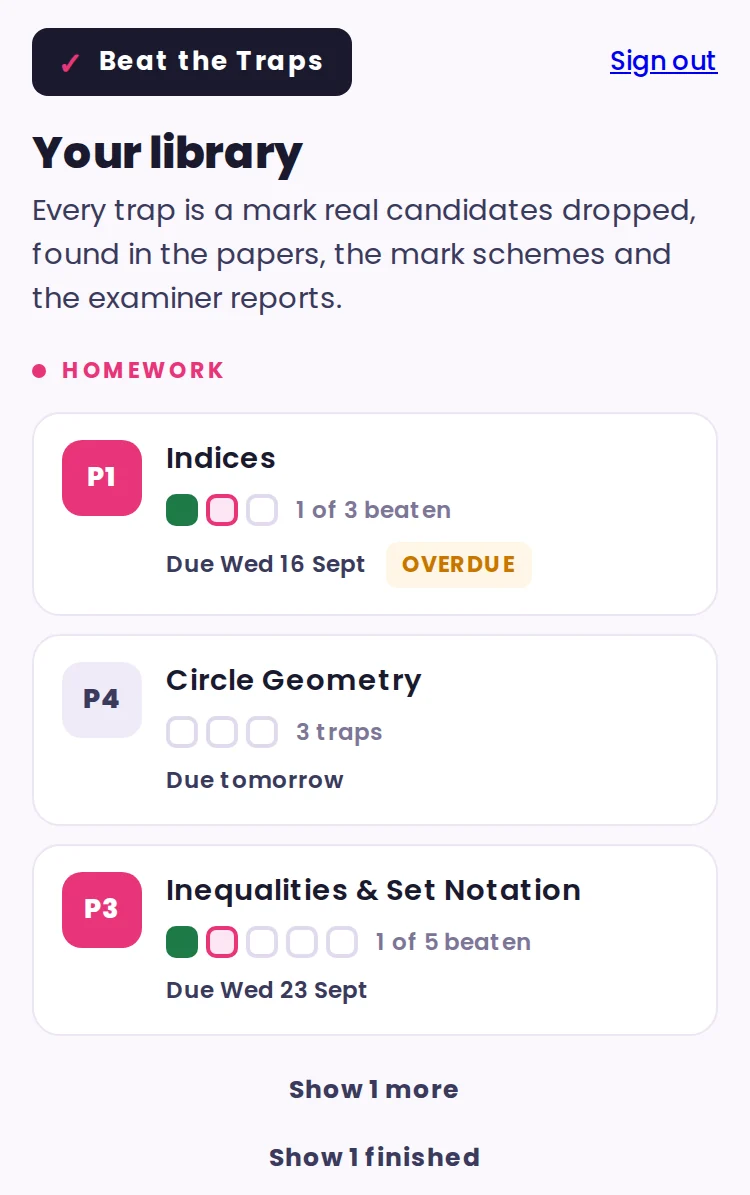
Students see homework at the top of their library, most pressing first, three at a time. It shows Overdue once the due date passes, and ✓ Finished once they've done the practice in every trap.
8Following homework
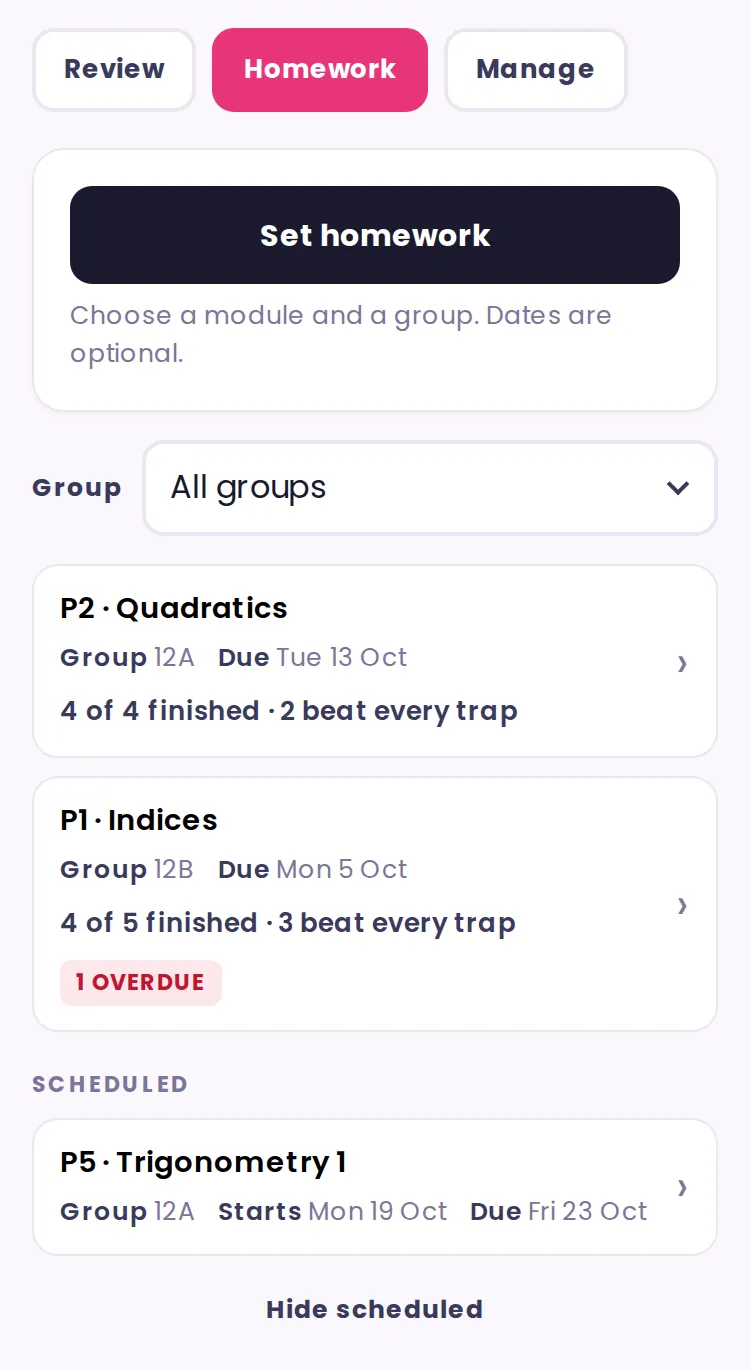
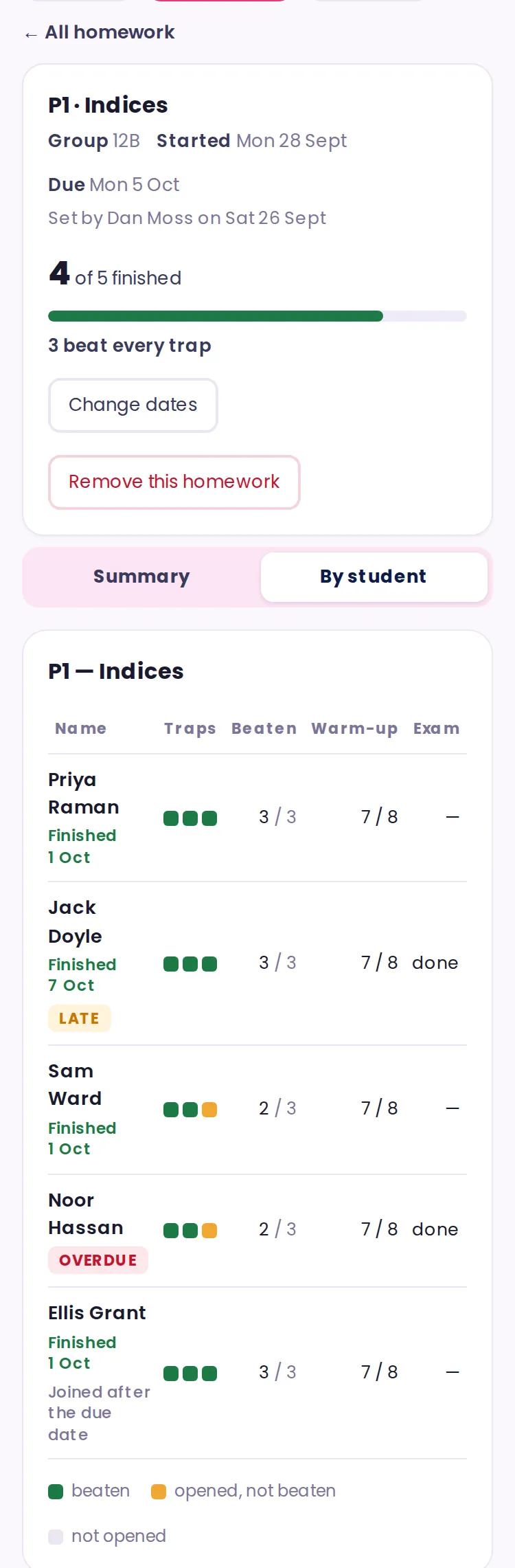
The Homework tab lists what's been set, with how many have finished, how many beat every trap, and how many are overdue. Homework that hasn't started yet folds away under Show scheduled.
Tap a homework to open it. Under its box is that module's review for the group, as in Review → By module, starting on By student. Under each name:
- Finished, with the date. Late means after the due date.
- Overdue: the due date has passed and they haven't finished.
- Joined after the due date: never marked late or overdue.
Summary shows the group's highlights and the traps to work on.
Change dates moves the start or due date. Remove this homework takes it off students' libraries. Their work is kept.
9Review: your class
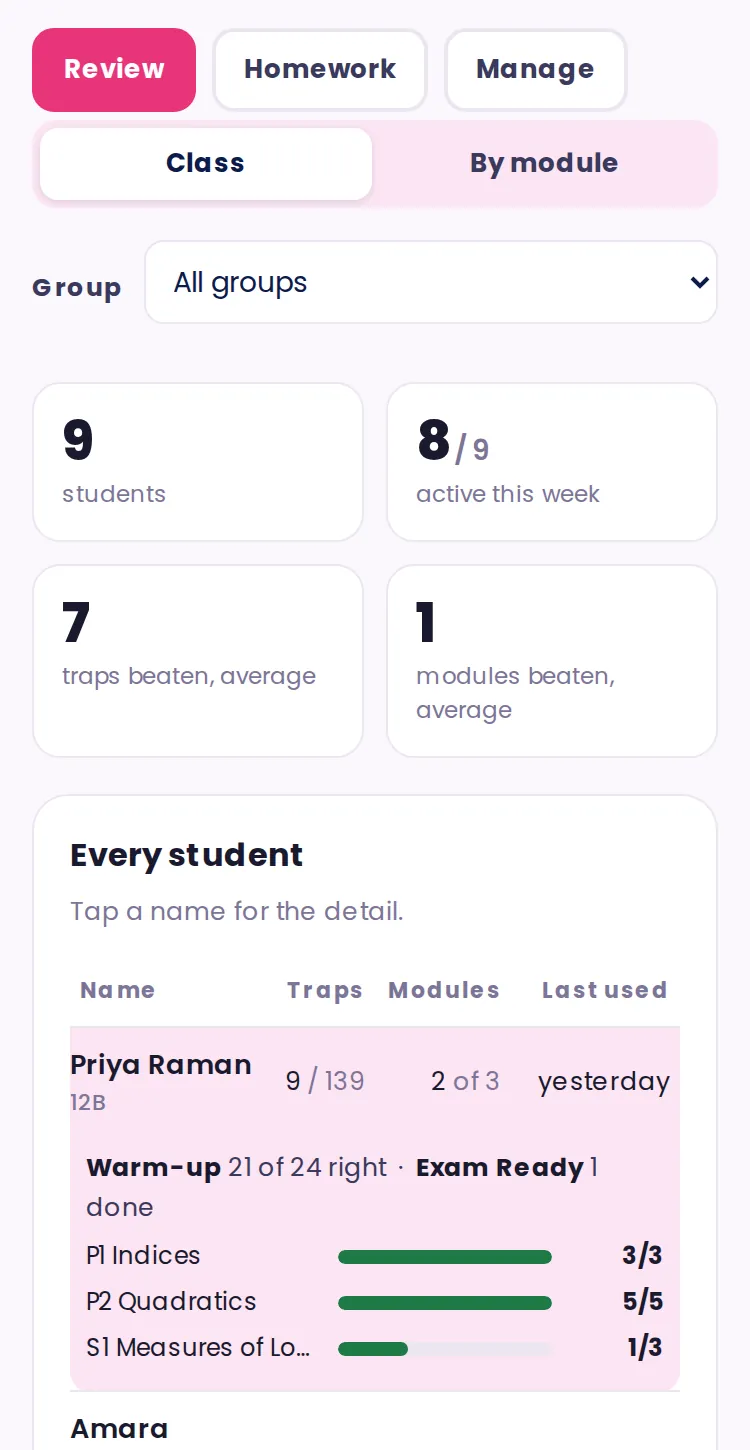
Review → Class shows how many students used Beat the Traps this week, and the class's average traps beaten and modules beaten.
Every student lists traps beaten, modules beaten, and when each student last used it. Tap a name to see their warm-up score, how many Exam Ready sets they've done, and each module they've opened.
10Review: one module
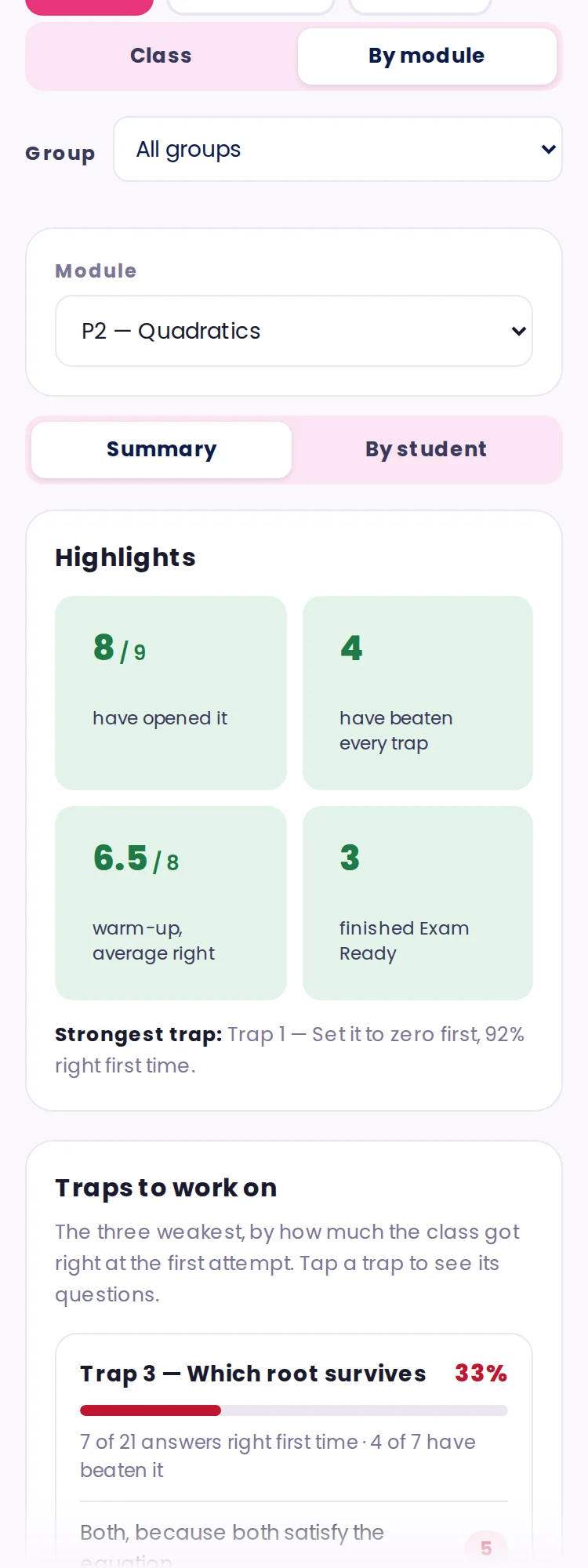
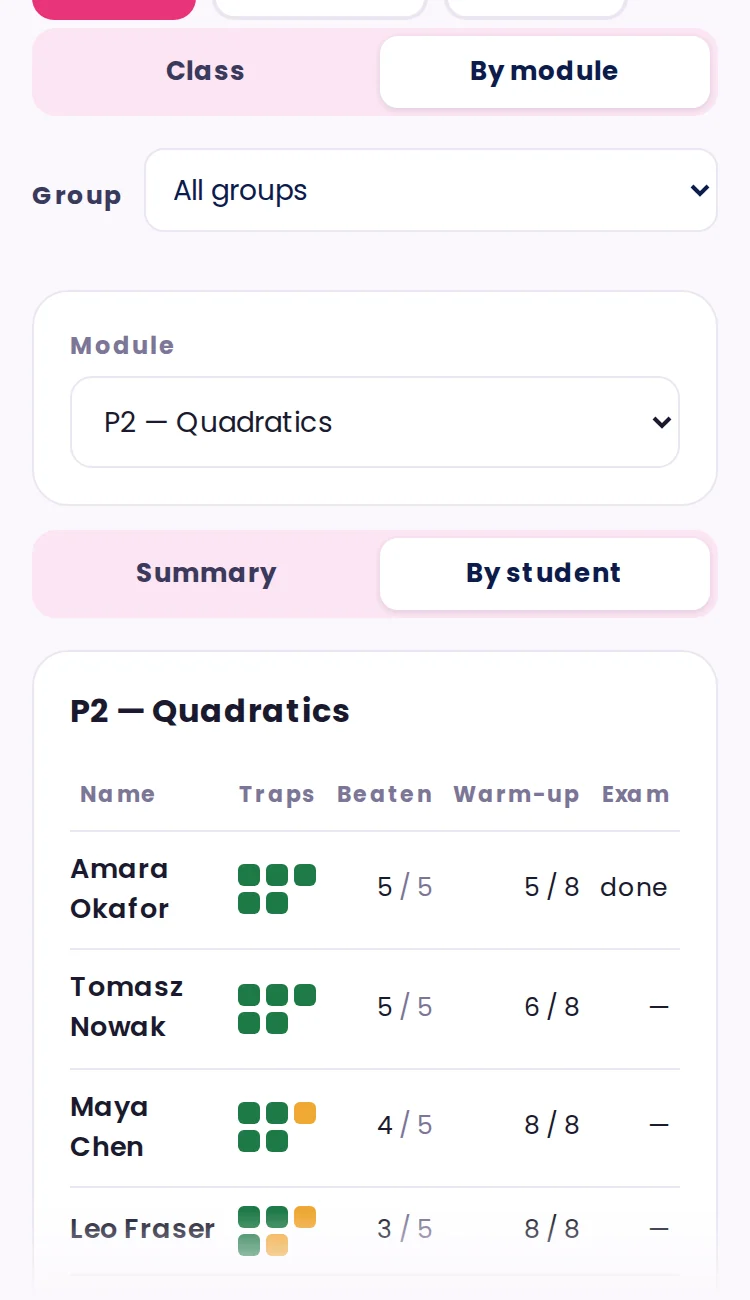
Review → By module → choose a module. Summary shows:
- how many students have opened the module and beaten every trap;
- the average warm-up score, and how many finished Exam Ready;
- the class's strongest trap and its Traps to work on.
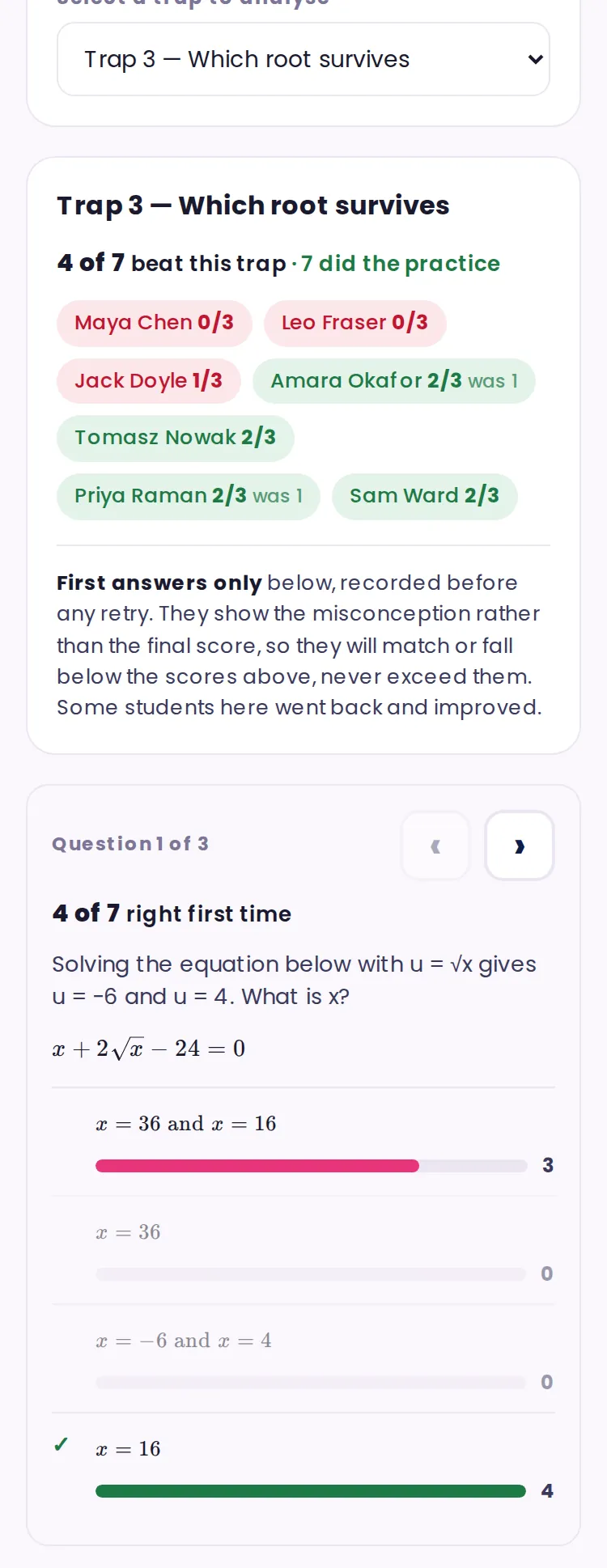
Choose a trap to see the answer each student chose first on every practice question. That's where misconceptions show.
By student gives a square per trap: green beaten, amber opened but not yet beaten, grey not opened.
11Downloading the spreadsheet
At the bottom of Review → Class, Download as a spreadsheet saves a file that opens in Excel, Numbers or Google Sheets. On an iPhone it goes to Files, in Downloads.
It has each student's name, modules beaten and opened, traps beaten and opened, warm-up score, Exam Ready, when they last used it, and traps beaten per module. It has no usernames, groups or chosen answers. This is your school's own copy; download it whenever you like. Print this page prints the screen.
12What your students see
Students sign in with their username. Progress saves on their phone as they go, so they can work without signal. It reaches your screens the next time they're online.
You see which traps they've beaten, their warm-up and practice scores, and the answer they chose first. You can't see their worked-example picks or their Exam Ready answers. If a student taps Start again on a module, its progress is cleared everywhere, including from your screens.
13Using it in lessons
You may show any part of Beat the Traps on a board, work through a trap with a class, and set it as independent study. Please don't copy questions into worksheets or slides, or upload them to your VLE or a shared drive.
14Quick answers
- Forgotten student password: Reset password, then give them the new slip.
- Student has left: Archive. It frees the seat.
- Student in the wrong group: Edit.
- Homework ticked at once: they'd already beaten every trap in that module.
- Progress vanished from a module: they probably tapped Start again.
- Work not showing yet: it uploads when their phone has signal. Ask them to open the library.
- Forgotten your own password: tap Forgotten your password? on the sign-in page and we'll email you a link.
- When your access ends: shown under your school's name on Manage.
- Help: hello@sakatismaths.co.uk. For personal information: privacy@sakatismaths.co.uk.